
Invoices - Creating an Invoice on behalf of a Crew Member
Company Admin and Payroll users can create and submit an invoice on behalf of a crewmember directly from the Operations Portal.
1. Start a New Invoice
Sign in to the Operations Portal and select Crew Invoices from the Payroll menu.
Select Create Invoice, then choose the crewmember you are creating the invoice for.

2. Choose the Invoice Type
Choose how you would like to create the invoice:
- From Assignment — Use this option when the invoice is for work associated with a production assignment. Select the production and worked date. CrewAngle will calculate the applicable hours and amount based on the assignment information. Review the calculations and adjust the rate or amount if necessary.
- Manual Entry — Use this option to create an invoice that is not based on an existing assignment. Enter the invoice amount and a description. Hours and rate can also be entered when applicable.
|
|

|

|
|
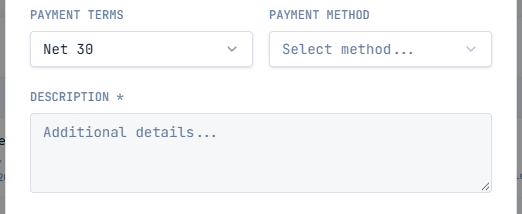
3. Enter Payment Information
Select the appropriate payment terms and, if applicable, the payment method.
Use the Description field to add any additional information that should appear with the invoice.
4. Add Supporting Documentation
If supporting documentation is needed, you can attach a PDF to the invoice.
PDF attachments must be 10 MB or smaller.

5. Review and Submit
Review the crewmember, assignment or invoice details, amounts, payment terms, and any supporting documentation for accuracy.
When everything is correct, select Submit Invoice.
The invoice will appear in Crew Invoices and will be identified as having been submitted on behalf of the selected crewmember.
